The Roku App (Official)
Roku, Inc. & its affiliatesEntertainment
4.7260.93K Reviews
- Version
- 14.2.0.117044833
- Installs
- 100.00M
- Age Rating
- Teen
Screenshots
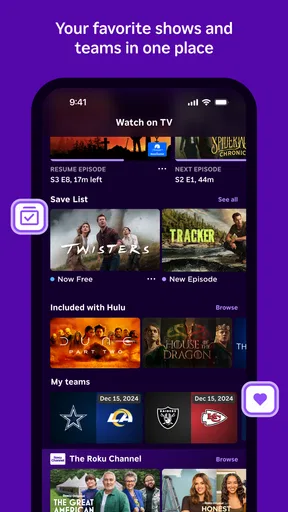
Our Review of The Roku App (Official)
 Analysis by Appyee
I find the easiest way to judge a phone remote is to ask whether it helps when the ordinary remote is missing, out of reach, or awkward to use. The Roku App (Official) is built around that practical role, with extra tools for finding and sharing entertainment. It is a free entertainment app from Roku, Inc. and its affiliates, and it makes the most sense if a Roku device is already part of your home setup. The experience depends on a working connection between your phone and the TV, so it is useful to understand where that connection helps—and where it can get in the way.
Using the App Around a Connected TV
I use this section to look at the practical moments when the phone and a Roku device need to work together, from choosing the right player to handling a command that seems slow. A little attention to the home network can save needless tapping, and it also helps clarify when the phone is a convenient extra rather than a replacement for a physical remote.
When the network makes the difference
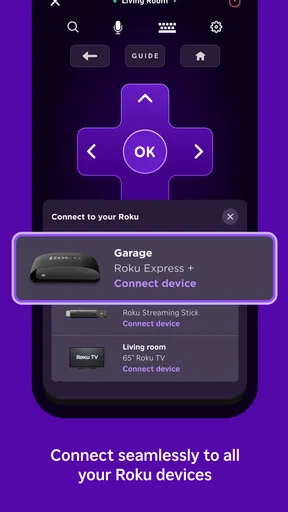
The app is most useful when the phone and Roku device can communicate on the same home network. Once they connect, the phone can act as a remote, and I can use its screen and keyboard for tasks that feel fiddly with physical buttons. The trade-off is straightforward: this is not a universal remote for any television. Without a compatible Roku device and a functioning connection, its central controls have nowhere to go.
That dependency matters in everyday situations. If a guest Wi-Fi network separates devices from one another, or the phone has switched to a different network, the Roku may not appear as expected. My first move would be to check that both devices are using the same home network, then reopen the app and look for the player again. It is a more sensible fix than repeatedly tapping controls that cannot reach the TV.
A phone is handy in different rooms
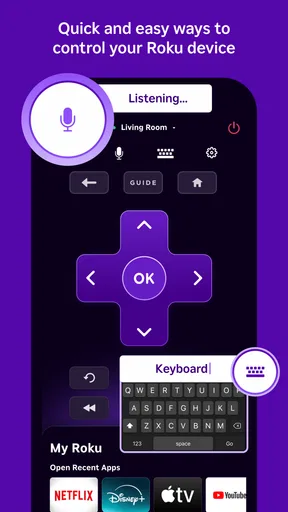
For a typical evening, imagine settling onto the sofa and discovering the remote is in another room—or that its batteries have run out. With the phone already nearby, I can select the Roku, adjust the volume, and search without getting up. Voice search is particularly useful when I know a title or actor but do not want to enter a long phrase one letter at a time.
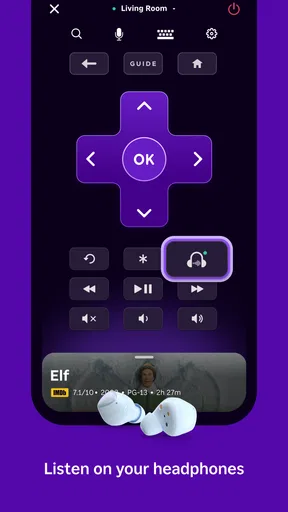
Private listening suits a different moment: someone else is asleep, working, or simply wants a quieter room. The app can route Roku audio to earphones connected to the phone, which gives me a more considerate way to watch late. It is still a phone-based setup, though, so I would keep the handset close and make sure the listening connection is behaving before settling in for a long episode.
When controls stop responding
If the app cannot find the Roku or a command seems delayed, I would treat it first as a connection problem rather than assume the TV itself is broken. Confirm the selected device, check the phone’s network, and give the app a moment to reconnect. If the home network or Roku is unavailable, the app cannot replace the missing connection with a direct physical control; keeping the usual remote nearby remains a useful backup.
That is the main limitation compared with a conventional remote. A physical remote is ready without opening an app and does not depend on the phone being charged or connected to the right network. The phone app, in turn, is harder to lose in a sofa and offers voice input and a keyboard. I see the two as complementary rather than interchangeable: the phone is a convenient second control, while a physical remote is the simpler fallback when connectivity is unreliable.
Sharing and browsing with a little planning
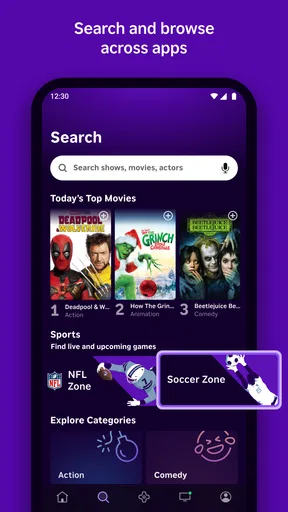
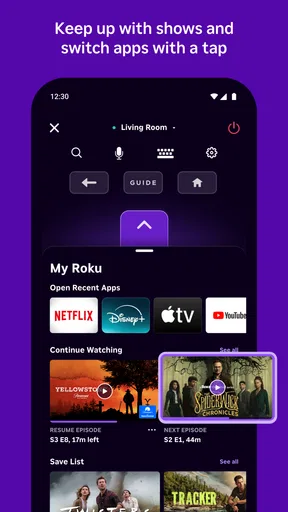
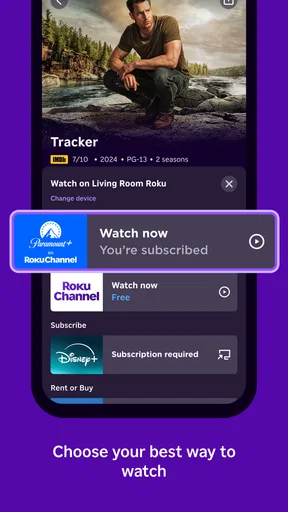
The app also brings Roku channel browsing and phone-to-Roku sharing into the same place. That can be handy when I want to show family photos or play a video or music stored on the phone, rather than search for the same item through a TV interface. Before guests arrive, I would check that the Roku is visible and that the media I plan to share is easy to find on the phone. A quick check avoids turning a casual viewing moment into a round of troubleshooting.
For data-conscious use, the important distinction is what is happening: controlling the Roku, browsing available channels, and sending media from the phone are different activities. I would avoid assuming that all of them use the same amount of network data. If a mobile connection is limited, I would keep the phone on the home Wi-Fi before browsing or sharing, and use the Roku’s normal playback setup for watching. That simple habit keeps a useful companion app from becoming an unexpected part of a mobile-data routine.
Who gets the most from it
I would recommend it most to people who already use Roku and often reach for their phones while watching TV. It is especially practical in a shared home: someone can keep the physical remote, while another person uses voice search or the phone keyboard. It also earns its place for late-night listening and occasional photo or media sharing, where the phone offers options a basic remote does not.
If you do not own a Roku device, this is not a general streaming remote that will control whatever television you have. And if you strongly prefer dedicated buttons, do not want to keep a phone nearby, or regularly have network trouble, a physical remote may be the better everyday choice. The app is best treated as a Roku-specific companion, not as a replacement for every other way of watching TV.
Roku’s app has been available since March 2, 2012, and its current version is 13.4.0.7242945, with Android 9 as the minimum operating system. Its 4.7 average comes from around 4 million ratings, and it has passed 50 million installs. It is rated Teen. Those details suggest a widely used, established companion, but they do not change the practical test: its value depends on whether it fits your Roku setup and your home network.
Transform Your Smartphone into a Remote
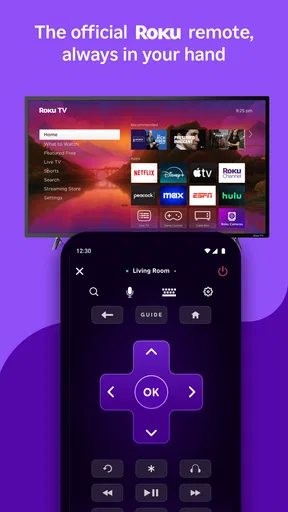
Alright, so here’s the deal. We’ve all been there: the couch has eaten your remote, and you’re left helpless. This is where The Roku App (Official) comes in clutch. It turns your smartphone into a full-fledged remote control. I mean, how cool is that? You can change channels, adjust the volume, and even use voice search without lifting anything but your phone. It's like having the power of your TV right in your hand.
Stream and Chill
One of the standout features is the ability to stream to your heart’s content. With the app, you can easily browse and add channels from the Roku Channel Store. It’s super convenient to have it all in one place. Plus, you can stream content directly from your phone to your Roku device. Whether it's photos, videos, or music, you can share it all at the tap of a button.
Voice Search That Actually Listens
Let's talk about voice search. It’s a game-changer. You just speak into your phone and voilà, the app pulls up exactly what you’re looking for. No more typing out long movie titles or actor names. It’s fast, responsive, and a little bit like having your own personal assistant. Just say what you want to watch, and let the app do the rest.
Private Listening: Your Ears Will Thank You
Ever wanted to watch TV late at night without disturbing the whole house? The app’s private listening feature is brilliant for that. Just plug your earphones into your phone, and you’re good to go. The sound from your Roku streams directly to your ears, letting you enjoy your favorite shows without waking up the neighborhood.
Easy Setup and Navigation
Setting up the app is a breeze. You just download it, connect to your Roku device, and you’re ready to rock and roll. The interface is intuitive, and navigating through the menus is as smooth as butter. You don’t need a degree in rocket science to figure it out, which is always a plus in my book.
So, there you have it. The Roku App (Official) is more than just a remote control; it’s a full-fledged entertainment hub that enhances your TV watching experience. Whether you’re streaming, searching, or just flipping through channels, this app makes it all just a little bit easier and a whole lot more fun. If you’ve got a Roku device and haven’t tried this app yet, what are you waiting for? Give it a shot, and thank me later!
Privacy and Permissions
See what permissions an app requests and how it handles your data.
- Location
- approximate location (network-based)
- Photos/Media/Files
- read the contents of your USB storage, modify or delete the contents of your USB storage
- Storage
- read the contents of your USB storage, modify or delete the contents of your USB storage
- Camera
- take pictures and videos
- Microphone
- record audio
- Wi-Fi connection information
- view Wi-Fi connections
- Other
- view network connections, pair with Bluetooth devices, access Bluetooth settings, change network connectivity, allow Wi-Fi Multicast reception, connect and disconnect from Wi-Fi, full network access, change your audio settings, control vibration, prevent device from sleeping, modify system settings, Google Play license check
Verdict
Strengths of The Roku App (Official)
- Easy to navigate interface for all users.
- Seamless connectivity with Roku devices.
- Voice search feature is highly efficient.
- Personalized recommendations enhance experience.
- Access to a wide range of free content.
Limitations of The Roku App (Official)
- Limited functionality without a Roku device.
- Occasional lag in remote control response.
- Ads can be intrusive during streaming.
- Some features require a paid subscription.
- Compatibility issues on older devices.
Other Releases by Roku, Inc. & its affiliates
View All
The Roku Channel
Entertainment4.1

Roku Smart Home
House & Home4.4
Similar Picks in This Category
View All
Google Play Games
Google LLC3.9

Netflix
Netflix, Inc.4.8

YouTube Kids
Google LLC4.2

Disney+
Disney4.4

Prime Video
Amazon Mobile LLC4.7

Steam
Valve Corporation3.2
Frequently Asked Questions
What features does the Roku App (Official) offer?
The Roku App (Official) transforms your mobile device into a remote control, offering features like voice search, private listening through headphones, and the ability to cast videos, photos, and music to your TV. It also provides easy access to Roku’s channel store, giving users the ability to browse and add new channels directly from their phone.
Is the Roku App free to use?
Yes, the Roku App is free to download and use. However, while the app itself doesn’t require a subscription, some channels available through Roku may have their own subscription fees or offer in-app purchases. Always check each channel’s requirements before subscribing.
Can I use the Roku App without a Roku device?
The Roku App is designed to enhance the experience of Roku device users, so it requires a Roku streaming player or Roku TV to function fully. Without a Roku device, you won’t be able to utilize most of the app’s features, such as remote control or channel management.
How do I set up the Roku App with my Roku device?
To set up the Roku App, ensure your mobile device and Roku device are connected to the same Wi-Fi network. Open the app, and it should automatically detect your Roku device. Follow the prompts to connect. If the device isn’t detected, try restarting both the app and your Roku device.
What devices are compatible with the Roku App?
The Roku App is compatible with iOS and Android devices. For iOS, it requires iOS 11.0 or later, and for Android, a minimum of Android 5.0 is needed. Always ensure your device’s operating system is up to date to guarantee the best performance of the app.
